
11 KiB
title, subtitle, date, lastmod, slug, draft, author, description, keywords, license, comment, weight, tags, categories, collections, hiddenFromHomePage, hiddenFromSearch, hiddenFromRss, hiddenFromRelated, summary, resources, toc, math, lightgallery, password, message, repost
| title | subtitle | date | lastmod | slug | draft | author | description | keywords | license | comment | weight | tags | categories | collections | hiddenFromHomePage | hiddenFromSearch | hiddenFromRss | hiddenFromRelated | summary | resources | toc | math | lightgallery | password | message | repost | ||||||||||||||||||||||||||||||||
|---|---|---|---|---|---|---|---|---|---|---|---|---|---|---|---|---|---|---|---|---|---|---|---|---|---|---|---|---|---|---|---|---|---|---|---|---|---|---|---|---|---|---|---|---|---|---|---|---|---|---|---|---|---|---|---|---|---|---|
| Deploying DeepSeek R1 Distill Series Models on RTX 4090 with Ollama and Optimization | 2025-02-08T18:29:29-05:00 | 2025-02-08T18:29:29-05:00 | ollama-deepseek-r1-distill | false |
|
This blog post explores the installation, optimization, and usage of DeepSeek-R1's distilled models in Ollama on Windows 11, MacOS, and Linux, highlighting performance and limitations. |
|
true | 0 |
|
|
|
false | false | false | false | This blog post explores the installation, optimization, and usage of DeepSeek-R1's distilled models in Ollama on Windows 11, MacOS, and Linux, highlighting performance and limitations. |
|
true | false | true |
|
Introduction
Recently, DeepSeek-R1 has gained significant attention due to its affordability and powerful performance. Additionally, the official release of several distilled models in various sizes makes it possible for consumer-grade hardware to experience the capabilities of reasoning models.
- deepseek-ai/DeepSeek-R1-Distill-Qwen-1.5B
- deepseek-ai/DeepSeek-R1-Distill-Qwen-7B
- deepseek-ai/DeepSeek-R1-Distill-Llama-8B
- deepseek-ai/DeepSeek-R1-Distill-Qwen-14B
- deepseek-ai/DeepSeek-R1-Distill-Qwen-32B
- deepseek-ai/DeepSeek-R1-Distill-Llama-70B
However, it is important to note that these distilled models are far from the full DeepSeek-R1 model. For instance, DeepSeek-R1-Distill-Qwen-32B only reaches the level of o1-mini.
This can be seen in the official chart (the chart below is interactive and you can turn off data that you do not want to see).
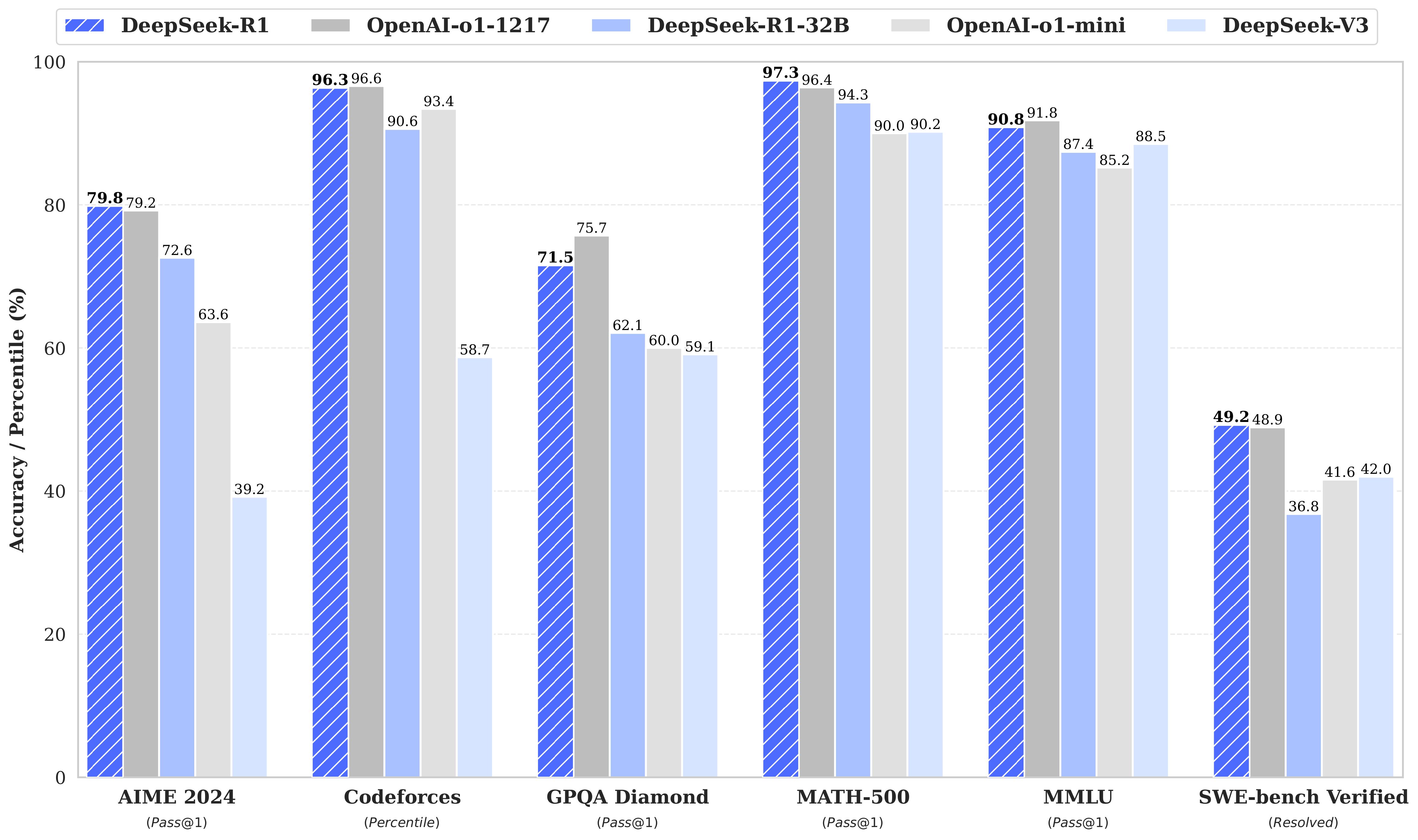
{{< echarts >}} { "tooltip": { "trigger": "axis", "axisPointer": { "type": "shadow" } }, "legend": { "top": 30, "data": [ "DeepSeek-R1", "OpenAI-o1-1217", "DeepSeek-R1-32B", "OpenAI-o1-mini", "DeepSeek-V3" ] }, "grid": { "left": "8%", "right": "8%", "bottom": "10%", "containLabel": true }, "xAxis": { "type": "category", "data": [ "AIME 2024\n(Pass@1)", "Codeforces\n(Percentile)", "GPQA Diamond\n(Pass@1)", "MATH-500\n(Pass@1)", "MMLU\n(Pass@1)", "SWE-bench Verified\n(Resolved)" ], "axisLabel": { "interval": 0 } }, "yAxis": { "type": "value", "min": 0, "max": 100, "name": "Accuracy / Percentile (%)", "nameGap": 32, "nameLocation": "center" }, "series": [ { "name": "DeepSeek-R1", "type": "bar", "data": [79.8, 96.3, 71.5, 97.3, 90.8, 49.2], "barGap": "0", "label": { "show": true, "position": "top" } }, { "name": "OpenAI-o1-1217", "type": "bar", "data": [79.2, 96.6, 75.7, 96.4, 91.8, 48.9], "label": { "show": true, "position": "top" } }, { "name": "DeepSeek-R1-32B", "type": "bar", "data": [72.6, 90.6, 62.1, 94.3, 87.4, 36.8], "label": { "show": true, "position": "top" } }, { "name": "OpenAI-o1-mini", "type": "bar", "data": [63.6, 93.4, 60.0, 90.0, 85.2, 41.6], "label": { "show": true, "position": "top" } }, { "name": "DeepSeek-V3", "type": "bar", "data": [39.2, 58.7, 59.1, 90.2, 88.5, 42.0], "label": { "show": true, "position": "top" } } ] } {{< /echarts >}}
Ollama provides a convenient interface and tools for using and managing models, with the backend being llama.cpp. It supports both CPU and GPU inference optimization.
Installation of Ollama
Follow the instructions on Download Ollama to complete the installation. My environment is as follows:
- Operating system: Windows 11
- GPU: NVIDIA RTX 4090
- CPU: Intel 13900K
- Memory: 128G DDR5
Creating Models
After installing Ollama, we need to create models. One way is to pull from the Ollama Library.
ollama pull deepseek-r1:32b-qwen-distill-q4_K_M
However, the default context length of this pulled model is 4096. This is insufficient and unreasonable, so we need to modify it.
One way is to directly edit the Modelfile. If you do not know where a model's Modelfile is located, execute the following command to view its Modelfile.
ollama show --modelfile deepseek-r1:32b-qwen-distill-q4_K_M
Here I provide my used Modelfile, which can be saved in a new text file, for example DeepSeek-R1-Distill-Qwen-32B-Q4_K_M.txt.
FROM deepseek-r1:32b-qwen-distill-q4_K_M

TEMPLATE """{{- if .System }}{{ .System }}{{ end }}
{{- range $i, $_ := .Messages }}
{{- $last := eq (len (slice $.Messages $i)) 1}}
{{- if eq .Role "user" }}<|User|>{{ .Content }}
{{- else if eq .Role "assistant" }}<|Assistant|>{{ .Content }}{{- if not $last }}<|end▁of▁sentence|>{{- end }}
{{- end }}
{{- if and $last (ne .Role "assistant") }}<|Assistant|>{{- end }}
{{- end }}"""
PARAMETER stop <|begin▁of▁sentence|>
PARAMETER stop <|end▁of▁sentence|>
PARAMETER stop <|User|>
PARAMETER stop <|Assistant|>
PARAMETER num_ctx 16000
It contains several parts, and we only need to modify the FROM statement (indicating which model is used for construction) and the value of num_ctx (default 4096 unless set otherwise through API requests). Here I set it to 16000, which represents the context length. The longer the context, the more memory and computational resources are consumed.
Note
After testing, RTX 4090 can run a 32B q4_K_M quantized model with KV Cache quantified as q8_0 and Flash Attention enabled while maintaining a context length of 16K. If running the same configuration for a 14B q4_K_M quantized model, it can achieve a context length of 64K. I will explain more about KV Cache quantization and Flash Attention later.
After creating the Modelfile, we can create the model using the following command:
ollama create DeepSeek-R1-Distill-Qwen-32B-Q4_K_M -f DeepSeek-R1-Distill-Qwen-32B-Q4_K_M.txt
Tip
The format is as follows:
ollama create <name of the model to be created> -f <path and name of Modelfile>
During this process, Ollama will pull the model and create it. After completion, you can execute ollama list to check the model list, and you should see something similar.
PS C:\Users\james\Desktop\Ollama> ollama list
NAME                                        ID              SIZE      MODIFIED
DeepSeek-R1-Distill-Qwen-32B-Q4_K_M:latest  ca51e8a9d628    19 GB     2 days ago
deepseek-r1:32b-qwen-distill-q4_K_M         5de93a84837d    19 GB     2 days ago
Optimization
Ollama supports multiple optimization parameters controlled by environment variables.
OLLAMA_FLASH_ATTENTION: Set to1to enable, and0to disable.OLLAMA_HOST: IP address Ollama listens on. Default is127.0.0.1, change it to0.0.0.0if you want to serve externally.OLLAMA_KV_CACHE_TYPE: Set toq8_0orq4_0. The default value isfp16.OLLAMA_NUM_PARALLEL: Number of parallel requests, more throughput but higher memory consumption. Generally set to1.OLLAMA_ORIGINS: CORS cross-origin request settings.
Flash Attention must be enabled. I recommend setting OLLAMA_KV_CACHE_TYPE to q8_0. In my tests, q4_0 reduces the reasoning length of R1, possibly because longer content and context are more important.
Windows 11
To set environment variables on Windows 11, go to "Advanced System Settings," then choose "Environment Variables." After that, select "New" to add a new variable. Restart Ollama for changes to take effect.
MacOS
On MacOS, you can use commands like the following:
launchctl setenv OLLAMA_FLASH_ATTENTION "1"
launchctl setenv OLLAMA_KV_CACHE_TYPE "q8_0"
Restart Ollama after setting environment variables.
Linux
In Linux, modify ollama.service file to change its environment variables after installing Ollama:
sudo systemctl edit ollama.service
Then add the Environment field under [Service], like this:
[Service]
Environment="OLLAMA_FLASH_ATTENTION=1"
Environment="OLLAMA_KV_CACHE_TYPE=q8_0"
Save and reload changes:
sudo systemctl daemon-reload
sudo systemctl restart ollama
Limitations
The backend llama.cpp used by Ollama is not designed for high-concurrency and high-performance production environments. For example, its support for multi-GPU is suboptimal; it splits model layers across multiple GPUs to solve memory issues but only one GPU works at a time. To utilize the performance of multiple GPUs simultaneously, tensor parallelism is required, which SGLang or vLLM are better suited for.
In terms of performance, Ollama does not match SGLang or vLLM in throughput and multi-modal model support is limited with slow adaptation progress.
Clients
For easier use of models within Ollama, I recommend two clients. Cherry Studio is a local client that I find useful, while LobeChat is a cloud-based client (I previously wrote an article on deploying the database version of LobeChat using Docker Compose).
{{< gh-repo-card-container >}} {{< gh-repo-card repo="CherryHQ/cherry-studio" >}} {{< gh-repo-card repo="lobehub/lobe-chat" >}} {{< gh-repo-card repo="Calcium-Ion/new-api" >}} {{< gh-repo-card repo="immersive-translate/immersive-translate" >}} {{< /gh-repo-card-container >}}
New API is a tool that I find useful for managing APIs and providing services in the OpenAI API format. Immersive Translate is another highly-rated translation plugin that supports calling OpenAI API for translations, which can also be combined with Ollama and New API. Its translation quality far exceeds traditional methods.